Tablet Frame Mockup in Canva
When you need to present a digital product, an app design, or a website preview, the way you frame it can change how people perceive its value. A tablet frame mockup in Canva offers a practical way to display your work inside a realistic device outline without needing design software or advanced skills. Instead of showing a flat screenshot, you place your content inside a tablet frame that gives context, scale, and a polished look. This small shift in presentation can make your work feel more professional and easier for your audience to picture in real use.
What a Tablet Frame Mockup in Canva Actually Does
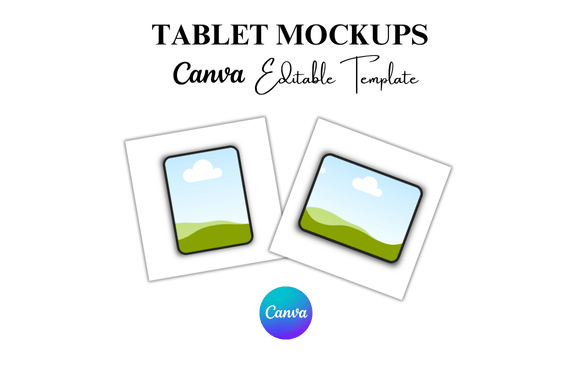
A tablet frame mockup is essentially a pre-built template or element in Canva that shows a tablet device outline—complete with bezels, screen area, and sometimes even shadows or reflections. You insert your own image, screenshot, or design into the screen area, and the mockup adjusts to fit. It transforms a plain image into something that looks like a real tablet display. Canva offers hundreds of these mockups, many of which are free or available through Canva Pro, and they cover front-facing, angled, and hand-held views. The process is straightforward: drag your image onto the mockup frame, and Canva clips it into the screen area automatically.
This is not about adding decoration for its own sake. The mockup serves a functional purpose. It helps your audience understand the size and context of what they are looking at. A website screenshot floating on a white background gives little information about how it fits on a real screen. Placing that same screenshot inside a tablet frame instantly communicates device proportions, orientation, and the viewing experience. For anyone presenting digital work, that clarity matters.
Why Context Improves How Your Work Is Received
When you share a digital design, app interface, or ebook cover, the viewer needs to imagine it in use. Without context, a flat image can feel abstract or disconnected from real-world application. A tablet frame mockup in Canva provides that missing visual anchor. It tells the viewer, “this is what the experience looks like on an actual device.” This is especially useful when you are presenting to clients, stakeholders, or an audience that may not have a technical background. They do not need to guess how your work translates to a screen. They see it directly.
For example, a freelance app designer showing a new onboarding screen to a client can use a tablet mockup to demonstrate how the interface fits within the device frame. The client can immediately assess layout, spacing, and visual hierarchy in context. The same applies to a blogger sharing a preview of a mobile-optimized site or a course creator showing a lesson screen from an educational app. The mockup removes ambiguity and helps the viewer focus on the content rather than wondering how it looks on a real device.
Practical Benefits That Save Time and Effort
One of the strongest advantages of using a tablet frame mockup in Canva is the time it saves. Without a mockup tool, creating a realistic device presentation often requires external software like Photoshop, finding device templates, manually aligning screenshots, and adjusting shadows or reflections. That process can take ten to fifteen minutes per image—longer if you need consistency across multiple frames. In Canva, you complete the same task in under a minute. You select a mockup, drop in your image, and the frame handles the rest. If you need to update the design later, you swap the image within the same mockup, and everything re-aligns automatically.
For professionals who produce frequent visual content—marketers creating social media graphics, educators building course slides, or entrepreneurs pitching products—this efficiency adds up. A saved hour per week means more time to refine your actual work or handle other responsibilities. The mockup becomes a workflow tool, not just a presentation element.
Use Cases Across Different Roles
Different people benefit from tablet frame mockups in Canva in different ways. A small business owner launching a mobile app can use mockups to create marketing visuals for the App Store or Google Play listing. Instead of hiring a designer, they create polished preview images themselves in Canva. A marketer preparing a case study presentation can insert analytics screenshots into tablet frames to make the data feel more tangible and credible. An educator building a digital course can show lesson screens inside a tablet to help students recognize the learning interface before they even open the app.
Freelancers and creative professionals also gain a branding advantage. When you deliver mockup images to clients as part of a proposal or project update, you demonstrate attention to detail. It signals that you care about how your work is perceived. A tablet frame mockup in Canva lets you present multiple design variants side by side in a clean, consistent format, making it easier for clients to compare options and make decisions.
Bloggers and content creators can use tablet frames to feature screenshots of their website, newsletter, or digital product in blog posts or social media content. A single well-framed image can increase engagement because it looks more like a showcase than a simple snapshot. Publishers creating book previews for an ebook or digital magazine can show a sample page inside a tablet frame, giving potential readers a realistic sense of the reading experience.
Creativity Without Technical Barriers
Canva lowers the barrier to creating professional-looking mockups. You do not need to understand layer masks, clipping paths, or device dimensions. The mockup templates handle those details. This opens up polished presentation to people who may not have design training but still need to communicate visually. A therapist creating a digital workbook, a coach launching a mobile course, or a nonprofit sharing a new app for community outreach can all use tablet frame mockups without hiring outside help.
At the same time, experienced designers can still benefit. Canva’s mockups serve as a rapid prototyping tool for client presentations or internal reviews. Rather than building a custom mockup from scratch for every preview, you use Canva’s templates to iterate quickly. The mockups also work well for A/B testing visual concepts, because you can produce multiple framed versions in minutes and compare them side by side.
Limitations and Fit Considerations
While a tablet frame mockup in Canva is useful for many situations, it is not a universal solution. The mockups are fixed in terms of device style and angle. Canva offers a wide selection, but you may not find an exact match for a specific tablet model or custom orientation. If your presentation requires a precise device representation for technical accuracy, you might need to supplement Canva’s mockups with a dedicated mockup generator or manual asset.
Another consideration is resolution. Canva exports at high quality, but if you need ultra-high-resolution images for large print displays or detailed zoomed views, you should check the output size of your chosen mockup. For web use, social media, presentation slides, and most digital applications, standard export settings work well. But if your project demands very large formats, test the clarity first before committing to a mockup.
Also, mockups with realistic shadows, reflections, or hand-held elements add visual richness, but they also add visual noise. In some contexts—like a clean technical documentation page or a minimalist portfolio—a simple screenshot may be more appropriate. Evaluate whether the mockup adds helpful context or unnecessary distraction for your specific audience and message.
How to Choose the Right Mockup for Your Work
When selecting a tablet frame mockup in Canva, think about the impression you want to create. A front-facing tablet mockup works well for showing app interfaces, website homepages, or reading content because it emphasizes the screen without distraction. An angled mockup adds a sense of depth and can make an image feel more dynamic for social media or marketing materials. A hand-held mockup introduces a human element, which can be effective for lifestyle-oriented content or product demonstrations.
Pay attention to the frame color and style. Dark bezels tend to recede and focus attention on the screen, while lighter bezels can make the device feel more present. Some mockups include subtle reflections or gradient backgrounds, while others keep a clean, flat look. Choose based on where the image will appear. A dark mockup on a dark website background may blend together, reducing contrast. A light mockup on a white page may feel too clean. Test a few options and see which one makes your content stand out best.
If you use Canva Pro, you gain access to a larger library of mockups and the ability to remove backgrounds for more flexible placement. The premium collection includes more varied angles, device styles, and environmental settings. For frequent mockup users, the upgrade often pays for itself in saved time and expanded options.
Thoughtful Observations on Presentation and Trust
There is a subtle psychological effect at work when you present your content inside a realistic device frame. It signals that the work has moved beyond a rough concept into a finished, usable state. This can be especially valuable when you are asking someone to invest time, money, or trust in what you have built. A tablet frame mockup in Canva, used thoughtfully, communicates care and competence without extra effort.
However, the quality of the underlying content still matters most. No frame can make a poorly designed interface look good. The mockup supports your work, it does not replace it. Use it to highlight strengths, not hide weaknesses. The best presentations combine strong content with a clean, appropriate frame that lets the work speak for itself.
In a crowded visual environment, small presentation choices accumulate into a larger impression. A tablet frame mockup may seem like a minor detail, but it can be the difference between a screenshot that gets scrolled past and one that gets a second look. When your audience sees your work in context, they are more likely to understand it, remember it, and act on it.