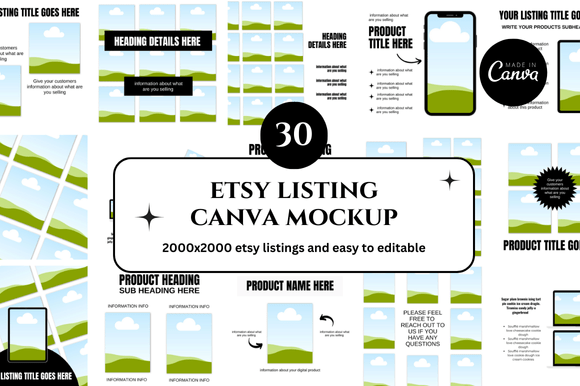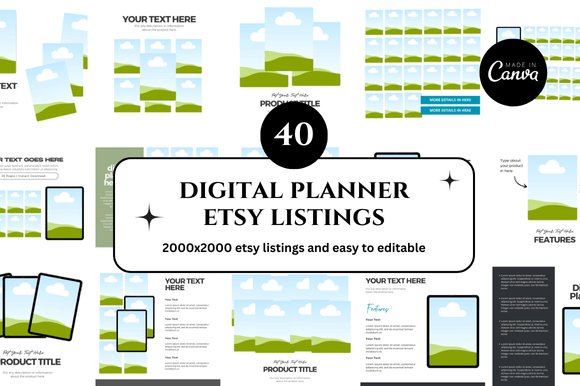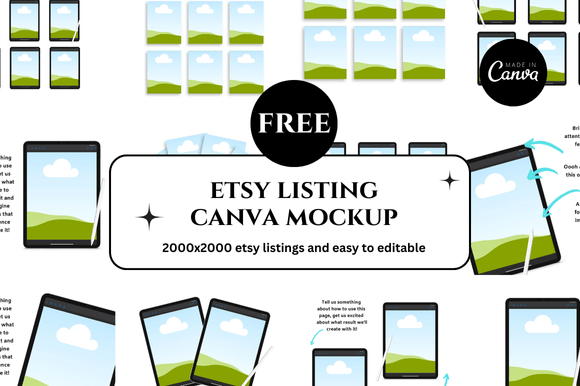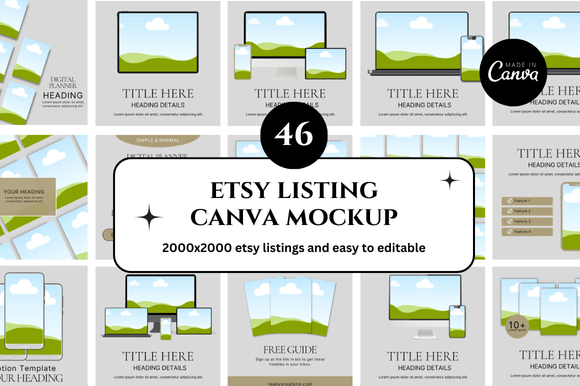
Etsy Device Canva Mockup Bundle: A Practical Guide to Choosing and Using Digital Mockups
If you sell digital products on Etsy, create social media content, or design brand presentations, you have likely encountered the term Etsy Device Canva Mockup Bundle. These bundles typically include editable mockup templates for smartphones, tablets, laptops, and other devices, all designed to work inside Canva. The appeal is obvious: you get a polished, professional look without needing Photoshop skills or expensive software. But not all bundles deliver what they promise, and many users end up frustrated with mismatched proportions, poor resolution, or confusing file structures. Understanding what to look for—and what to avoid—can save you time, money, and a fair amount of headache.
What an Etsy Device Canva Mockup Bundle Actually Does
At its core, a mockup bundle provides pre-designed templates that let you place your own artwork, screenshot, or design onto a realistic device screen. You simply drag and drop your image into a designated area, and the template handles the perspective, lighting, and shadows. For sellers on Etsy, this means product listings that look clean and credible. For bloggers and marketers, it means consistent visuals across posts and ads. The convenience is real, but the quality and usability vary widely from one seller to another.
Mistake One: Choosing a Bundle with Low-Resolution Assets
One of the most common oversights is assuming that all mockup templates are created equal. A bundle might contain dozens of device mockups, but if the base files are small, your final images will look blurry when enlarged. This is especially problematic for Etsy product listings, where customers often zoom in on photos to inspect details. A pixelated screen or fuzzy device edge signals low quality, even if your actual product design is excellent.
What to check instead: Look for bundles that specify a minimum resolution of 300 DPI or at least 4000 pixels on the longest side. File size also matters—a single mockup that is under 1 MB is rarely sharp enough for professional use. Sellers who provide clear resolution details in the listing are usually more transparent about quality. If the listing is vague, ask a question before purchasing.
Mistake Two: Overlooking Aspect Ratio and Frame Fit
Another frequent frustration happens when a mockup template forces your design into a shape that crops or distorts it. Many Canva mockup bundles use smart crop frames, but the aspect ratio of the frame might not match your content. For instance, if you are trying to display a vertical mobile app screenshot, but the mockup frame is designed for a wider screen, you will end up with awkward empty space or a stretched image.
The better approach: Test the bundle with your actual content before relying on it. Download the free preview files that most reputable sellers offer. Place your design inside the mockup and see how it behaves. If the frame resizes unexpectedly or your image gets cropped badly, that bundle is not a good fit for your specific needs. Look for bundles that include multiple orientation options—portrait, landscape, and square—so you have flexibility for different projects.
Mistake Three: Ignoring Where and How the Mockup Will Be Used
A bundle that looks stunning on a computer screen may not work well for Instagram stories, Pinterest pins, or Etsy thumbnails. Each platform has its own optimal dimensions, and a mockup that is too wide, too tall, or too detailed for a small thumbnail will lose its impact. Many creators purchase a single bundle hoping it will cover every use case, only to find themselves manually resizing and repositioning for each platform.
Practical advice: Before buying, think about your primary distribution channels. If you need mockups mainly for Etsy listing photos, look for bundles that include square or vertical formats that fit comfortably within Etsy's image grid. If you create a lot of social content, prioritize bundles that offer both horizontal and vertical versions of each device. Some bundles even include pre-cropped variants for specific platforms, which is a sign that the seller understands real-world usage.
Mistake Four: Assuming All Canva Mockups Are Equally Editable
Not every bundle that claims to be a Etsy Device Canva Mockup Bundle is actually easy to edit inside Canva. Some templates rely on locked layers, complex groupings, or external assets that require a Canva Pro subscription. You might find yourself unable to change a shadow, adjust a reflection, or swap a background color without upgrading your account or watching a lengthy tutorial.
How to avoid this: Read the product description carefully for phrases like “full layer control” or “editable background.” Look for screenshots that show the Canva interface with clearly labeled layers. Better yet, check if the seller offers a short video preview demonstrating the editing process. If the listing feels vague about how editing works, consider it a red flag. A good bundle should let you change the device color, background, and screen content in just a few clicks, without requiring advanced Canva skills.
Mistake Five: Forgetting About Bulk Editing and Batch Work
If you are an Etsy seller with dozens of products to list, editing each mockup individually can become a huge time drain. Many bundles present beautiful individual templates but offer no way to quickly apply a design across multiple devices. You end up duplicating effort, which defeats the purpose of using a template in the first place.
Smarter workflow: Look for bundles that include a master template or a single file where you can swap designs in and out efficiently. Some advanced bundles provide a “brand kit” approach: you change your design in one place, and it updates across all device mockups in the same file. This feature is not always advertised, so it is worth asking the seller directly. Even a bundle that simply organizes mockups into separate Canva pages within one document can reduce repetitive work.
Mistake Six: Neglecting File Type and Download Format
Comparatively minor but still disruptive: bundles are sometimes delivered in formats that do not play well with Canva. While most mockups now come as editable Canva templates, some older or cheaper bundles still rely on PNG or JPG overlays that require manual masking. Others might include PSD files that are useless outside Photoshop. This can leave a beginner stuck, wondering why the mockup does not work as expected.
What to verify: Confirm that the bundle uses Canva-native formats—specifically, files with a .canva template link or editable elements inside the Canva editor. Avoid bundles that offer only static PNGs with transparent areas for you to manually align. The entire point of a Canva mockup bundle is that you edit inside Canva. If the seller cannot clearly state that the files are ready for Canva editing, look elsewhere.
Mistake Seven: Ignoring Usage Rights and Licensing
This is the detail that trips up many small business owners. You purchase a bundle and start using the mockups for your Etsy listings, social media ads, and even client presentations. Months later, you discover that the license only allows personal use or prohibits commercial use of the generated images. Worse, some sellers use mockups that incorporate stock device images with restrictive licenses, and that restriction passes on to you.
Protect yourself: Always check the license terms before purchasing. Look for “commercial use” or “extended commercial license” explicitly stated. If the listing says “for personal use only” or does not mention commercial rights, assume you cannot use it to promote your business. Reputable sellers will include a license file in the download or link to their terms in the description. When in doubt, message the seller and ask for written confirmation. This small step can prevent legal headaches and lost revenue later.
How to Evaluate a Bundle Before You Buy
Taking a few minutes to assess a bundle before purchasing saves more time than any shortcut. Start by examining the listing images closely. Blurry thumbnails, overly compressed previews, or images that look like they were stitched together from different sources are warning signs. Check the number of mockups included, but also note how many unique device models and angles are represented. A bundle with 100 mockups might seem generous, but if they are all minor variations of the same phone angle, the real value is low.
Read reviews with a critical eye. Look for comments about ease of editing, file compatibility, and customer support. If multiple reviews mention blurred outputs or confusing layers, take those seriously. Conversely, reviews that specifically mention “clean files,” “fast to edit,” and “exactly as described” point to a reliable seller.
Trial the freebies. Many bundle sellers offer a free sample mockup. Use it to test your workflow from download to final export. If the free mockup editing experience is smooth, the paid bundle is likely built the same way. If the free file has issues, the bundle probably will too.
Making the Most of a Quality Bundle
Once you have found a solid Etsy Device Canva Mockup Bundle, take a few steps to get full value from it. Organize the templates into folders by device type and orientation. Create a consistent naming system so you can quickly locate the right mockup when you need it. If the bundle allows, set up a master branding file with your colors, fonts, and logo, and keep it linked to the mockup templates.
Use mockups not just for product listings but also for portfolio presentations, social media highlights, email headers, and even printed lookbooks. A well-made mockup bundle can become a reusable asset that serves your business for years. The key is choosing one that fits your actual workflow, not just your aspirations.
The Bottom Line
An Etsy Device Canva Mockup Bundle can be a powerful tool for presenting your work in a professional, credible way. But the difference between a bundle that saves you time and one that wastes it comes down to resolution, fit, format, editing flexibility, and licensing. By checking these factors before you buy, you avoid the common pitfalls that frustrate so many users. The goal is not simply to own more mockups—it is to have the right ones that work the way you need them to, every time you open Canva.