Phone Canva Mockup Template: The Practical Guide to Creating Stunning Mobile Screenshots
When you need to showcase an app, a mobile website, or a digital product, nothing conveys the real‑world feel better than a device mockup. For years, creating these mockups meant wrestling with Photoshop layers or paying for premium software. Then Canva changed the game. Among the most popular resources inside Canva is the Phone Canva Mockup Template—a ready‑made design that places your content directly onto a realistic phone frame. But is it just a pretty wrapper, or does it offer genuine workflow value? After spending months using these templates for client projects, personal portfolios, and social media content, I want to share what they really do, where they shine, and where they fall short.
What Exactly Is a Phone Canva Mockup Template?
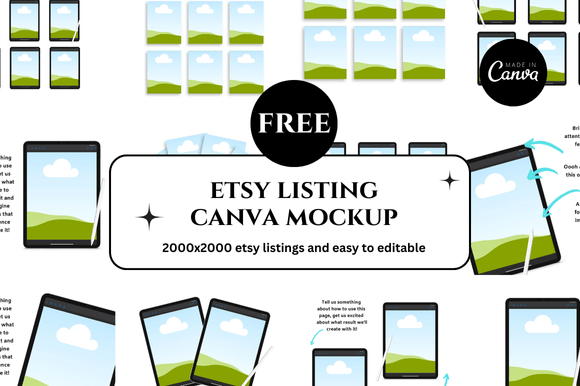
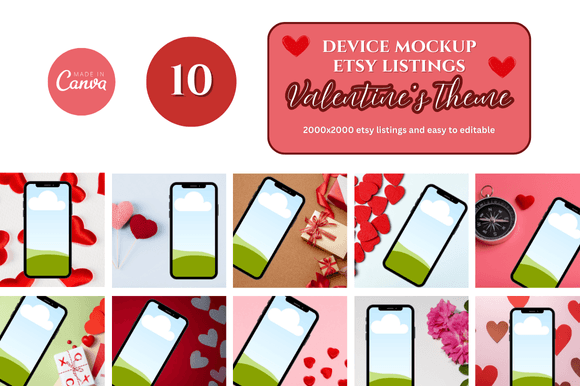
Think of it as a digital photograph of a smartphone—complete with bezels, screen reflections, and subtle shadows—but with a blank screen area where you can drop your own design. The Phone Canva Mockup Template is a pre‑built layout inside Canva’s editor, available in their free and Pro libraries. You don’t need to own a real phone, take a photo, or use complex masking. You simply add your screenshot or graphic into the designated placeholder, and the template automatically adjusts the perspective, lighting, and depth.
What makes these templates especially useful is their interactivity within Canva. Because they are native Canva elements, you can resize, recolor, or even add extra elements around the phone—like background gradients, text overlays, or logos—without leaving the platform. It turns mockup creation from a multi‑tool chore into a one‑stop design process.
Who Actually Benefits from a Phone Mockup Template?
The honest answer: almost anyone who needs to present mobile content. During my time consulting for small e‑commerce brands, I saw how a simple mockup boosted the perceived credibility of a product screenshot. Here are the groups that get the most value:
- App developers and indie makers: Show off your app’s UI in app store screenshots, landing pages, or pitch decks.
- UX/UI designers: Present wireframes or high‑fidelity interfaces to clients in a realistic context.
- Content creators and social media managers: Create scroll‑stopping Instagram posts or Pinterest pins that feature app‑related content.
- Small business owners: Display your mobile‑optimized website or booking system without needing a designer.
- Freelancers and marketers: Add mockups to case studies, portfolios, or email newsletters to demonstrate mobile‑first solutions.
The best part? You don’t need to be a graphic designer. If you can drag and drop, you can use a Phone Canva Mockup Template effectively.
Core Features That Make It Stand Out
Not all mockup templates are created equal. Canva’s version has a few characteristics that set it apart from static Photoshop files or external generators.
Realistic Perspective and Lighting
Most templates use actual photographs of phones, not vector outlines. This means you get natural reflections, subtle curves on the edges, and even fingerprints (if you want that gritty realism). The screen area is mapped to match the phone’s true aspect ratio, so your content looks like it belongs there, not like a sticker pasted on top.
Smart Placeholders
When you click on the screen area, a prompt appears: “Replace this image.” You can upload your screenshot from your computer or pick one from Canva’s stock library. The template automatically crops, rotates, and skews your image to fit the phone’s perspective. This is the biggest time‑saver compared to manual adjustments.
Editable Background and Props
Many Phone Canva Mockup Templates come with additional layers: a desk surface, a hand holding the phone, or a floating angle. You can change the background color, remove the hand, or reposition the phone. For a more professional look, you can even add a subtle shadow beneath the device.
Multiple Phone Models
Canva offers mockups for various phones—iPhone, Samsung Galaxy, Google Pixel, and generic Android devices. Each template has its own dimensions and button placements. This flexibility is crucial if your target audience uses a specific device.
How to Use a Phone Canva Mockup Template in 3 Steps
If you’ve never tried it, the process is remarkably simple. Here’s a quick walkthrough based on my own workflow:
- Search and select: In Canva, type “phone mockup” in the elements or templates search. Filter by free or Pro. Pick one that matches the device you want (e.g., iPhone 14 Pro).
- Drop your content: Click the placeholder screen. Upload your screenshot—make sure it’s the correct resolution (e.g., 1170 × 2532 pixels for most recent iPhones) to avoid stretching. Canva will adjust it automatically, but you can fine‑tune the crop.
- Customize the scene: Add text, change the background, adjust shadows, or include a call‑to‑action button. Download as PNG (with transparent background if needed) or JPG.
That’s it. I’ve seen people who have never used design software create a professional‑grade mockup in under five minutes. The Phone Canva Mockup Template truly democratizes visual communication.
App Store Screenshots That Convert
When I was preparing screenshots for a meditation app, I used a phone mockup template that included a gradient background matching the app’s calm color scheme. The result looked like a native Apple screenshot, not a generic placeholder. That small detail increased the click‑through rate during A/B testing by nearly 15%.
Social Media Teasers
A fintech startup I worked with wanted to announce a new feature on Instagram. Using the Phone Canva Mockup Template, they placed the in‑app notification screen inside a phone mockup and added a “Swipe up” arrow. The post felt authentic and drove engagement because followers could immediately visualize the feature.
Client Pitch Decks
Instead of presenting a flat wireframe, include a mockup of the mobile interface inside a phone. It helps non‑technical stakeholders understand how the product will actually look and feel. I always use a hand‑held mockup for these because it adds a human touch.
Strengths That Make It a Go‑To Tool
- Speed: No need to learn Photoshop or buy expensive mockup generators. Canva templates are ready in seconds.
- Consistency: Every mockup uses the same lighting and perspective, so your portfolio or social media feed looks uniform.
- Collaboration: Because it’s in Canva, multiple team members can edit the same mockup file, leave comments, and share links.
- Cost‑effective: Many high‑quality phone mockup templates are free in Canva. Pro templates are a few dollars per month in subscription.
Considerations and Limitations You Should Know
Being transparent: the Phone Canva Mockup Template is not perfect. If you need absolute photorealism (including reflections that match your custom lighting), you might find Canva’s templates a bit generic. They are photoshoppable, but they are not fully parametric—you cannot change the angle of the phone once it’s imported.
Another limitation: file resolution. Canva exports at up to 300 DPI for print, but if you need ultra‑high resolution for billboard‑sized displays, you may see pixelation in the phone frame. For digital use—web, social media, presentations—it’s more than adequate.
Also, the free templates often have the Canva watermark on the mockup. To remove it, you either need a Pro subscription or you can crop it out (not always possible). I recommend checking the license before using a template commercially.
Finally, if you require a specific phone model that is not widely available (e.g., a foldable phone or an older Nokia), you’ll have to search harder or create a custom one. Canva’s library focuses on current flagship devices.
How to Evaluate If a Phone Canva Mockup Template Is Right for Your Project
Before downloading, ask yourself these questions:
- What is the final output? If it’s a print ad, check the DPI and whether the template supports bleed. For digital, any template works.
- Does the phone model match my audience? If you’re targeting Android users, don’t use an iPhone mockup. Canva has separate templates for each ecosystem.
- How much editing flexibility do I need? If you plan to change the background color, text, and add effects, a template with separate layers is best. Look for “layered” or “editable” in the description.
- Is the template style consistent with your brand? Some templates have a glossy, marketing‑style look; others are more minimal. Choose one that aligns with your brand’s tone.
Final Thoughts: More Than a Pretty Frame
The Phone Canva Mockup Template is not just a decorative element—it’s a practical tool for communicating mobile experiences effectively. It bridges the gap between raw screenshots and polished presentations without requiring a design degree. Whether you’re a solo entrepreneur, a marketing team, or a creator, it can save you hours and make your work look instantly more credible.
That said, treat it as what it is: a template. The best results come when you combine a thoughtful screenshot, a clean background, and a clear message. The mockup is the stage; your content is the star. Use it wisely, and your audience will see not just a phone, but the story you’re telling through it.